
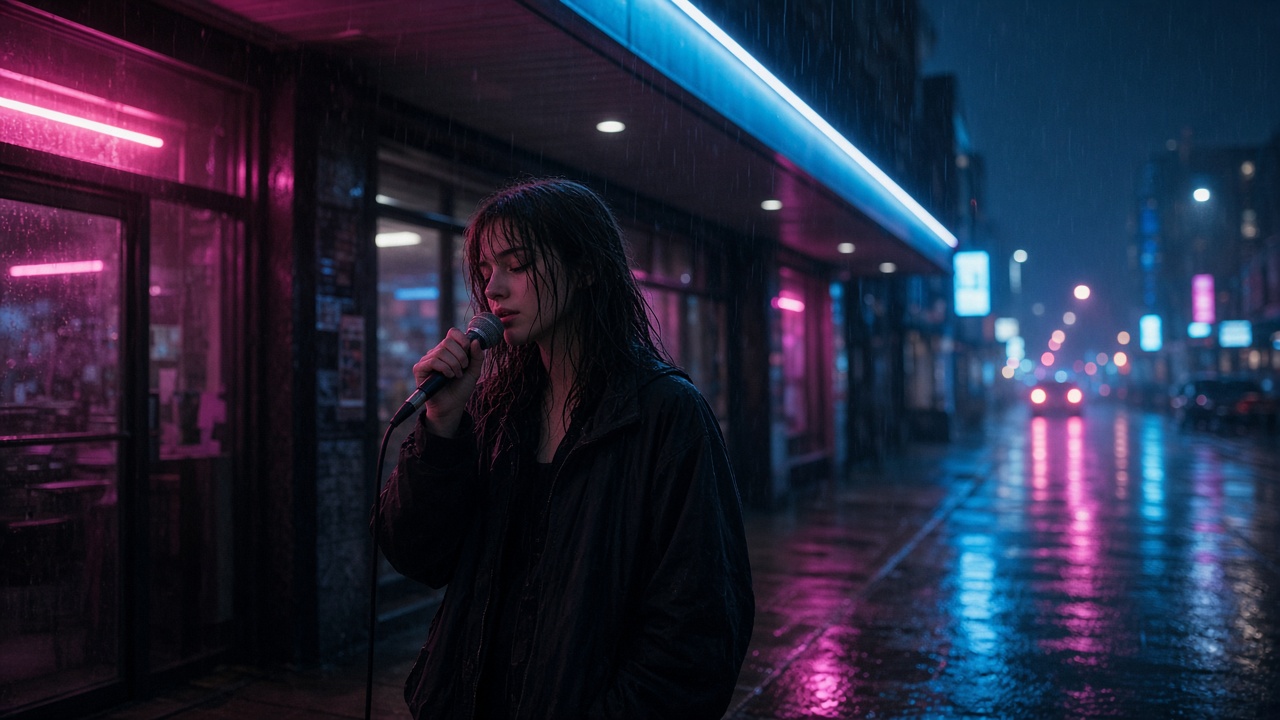
If you finished a track in Suno, Udio, or another AI music tool, the next challenge is visual: a music video needs repeating characters, a coherent palette, and shots that change when the song changes—not a slideshow of unrelated clips. Seedance generates short cinematic shots from text (and references when your interface supports them). It does not replace your song file, a timeline editor, or perfect lip sync. This walkthrough uses a fictional indie-pop song about missing someone on a rainy city night to show how planning beats one giant prompt.
What You Need Before Turning a Song into an AI Music Video
Gather the final audio export, lyrics or section markers (verse, pre-chorus, chorus, bridge), and a one-line mood note—for example, “melancholy but warm, neon reflections on wet pavement.”Open Seedance where you normally create clips, and keep a notes doc for wardrobe and character descriptions you will reuse verbatim. You also need basic editing software to place clips on a timeline and align them to the song; CapCut, DaVinci Resolve, or similar free tools are enough for a first version.
Decide whether the video stars a real person, a fictional character, or silhouettes only. Some interfaces restrict identifiable face references; check the current platform rules before uploading personal photos. Music rights stay with whatever license your music generator grants—Seedance output does not automatically clear commercial use for the underlying song.
Start with the Song Structure, Not Random Visual Prompts
Listen once with the lyrics in front of you and mark energy shifts. The rainy-night indie-pop example might open quietly on a window, build through walking shots in verse two, and widen into chorus scenes with more motion and light. Each section gets its own visual brief: camera distance, dominant color, and whether the singer appears on camera or only in B-roll.
Avoid prompting “music video about sadness”as a single request. Models interpret that as random montage. Instead, tie each prompt to a timestamp range, even if you only generate a 30-second proof before committing to the full song. Our sample chorus might call for wet asphalt, taxi bokeh, and the singer under a convenience-store awning—details you repeat across chorus iterations for consistency.
Build a Shot List for the Verse, Chorus, and Ending
Draft a table: column one is song section, column two is duration, column three is shot purpose. Verse one could be two five-second clips (hands on a coffee cup, then a slow street tracking shot). Chorus might need three clips with brighter exposure and faster implied motion. Ending often works best as a single wide shot pulling away. Seedance clips are short; count how many generations you need before you start so you are not surprised mid-edit.
For the fictional track, verse one prompts emphasize interior loneliness; chorus prompts add rain, neon, and walking pace; the outro returns to the window with softer light. Write these as separate rows so you can regenerate one failed chorus clip without redoing the whole project.
How to Keep the Singer and Visual Style Consistent
Copy-paste a character block into every performance prompt: age range, hair, jacket color, and one distinctive accessory (silver ear cuff, red scarf). Match weather and time of day across shots—“continuous rain, 10 p.m., same city”—so edits feel like one evening. When your tool accepts reference images, use the best frontal frame from an earlier generation as input for later verses.
Example Prompts for a Cinematic AI Music Video
Change jacket color or location words if your character drifts. Keep “stable face”and lighting cues unless you intentionally want a hard cut.
Use B-roll to hide jump cuts between performance takes and to cover lyrics where lip sync would be hardest to sell.
How to Handle Lip Sync, Audio Timing, and Short Clips
Seedance may suggest mouth motion, but it will not lock perfectly to your exported WAV or MP3. Plan performance shots where slight mismatch is acceptable—profile angles, distance, or moments with obscured mouths. Align clip starts to downbeats in your editor using waveform view; trim tails so transitions land on snare hits or phrase endings.
Because each generation is shorter than a full song, loop or extend only when motion stays believable. Cross-dissolve two similar rain shots rather than hard-cutting unrelated locations. If sync matters for a hook line, consider showing the singer only after the line plays over B-roll, or add stylized subtitles in post rather than relying on in-frame mouth accuracy.
Put the Generated Shots Together into a Finished Music Video
Import clips in chronological order, mute any baked-in audio from previews, and lay the Suno (or other) master track underneath. Watch once without effects: fix chronological mistakes before color grading. Use gentle fades or matched motion cuts (two walking shots facing the same direction) instead of flashy transitions that expose continuity errors.
Start with a 30-second vertical or horizontal sample—one verse and half a chorus—before generating the entire three-minute track. That sample validates wardrobe language, rain effects, and edit rhythm. When satisfied, batch-generate remaining sections, keeping prompts and references organized by song part. Export, review on a phone speaker and headphones, and regenerate only the shots that break immersion.